

Manage Your Bids with the Multi-Bid Editor
The ironSource multi-bid editor is designed to offer an easy way to manage the bids across all your campaigns. Your campaign multi-bids determine how much you’re willing to pay for the desired interaction with your ad on a per application, per geo basis.
This editor allows you to export the CSV that contains a list of your selected campaigns’ multi-bids if you’d like to have it on hand. The bids are defined on a per application, per geo basis. You can easily edit existing bids, create new ones or delete outdated ones within the CSV. You can then upload the CSV to the ironSource platform and will then receive an email confirming the changes to your campaigns’ bids within minutes!
Step 1. Edit Your Campaign Multi-Bids
To manage your bids, navigate to the Campaign Management page on your ironSource dashboard. Select Campaigns on the left menu bar on your ironSource account.
It is recommended to download the multi-bid CSV template which includes the correct formatting necessary to edit your campaigns. In the case you have this exact CSV on hand, you may skip this step.
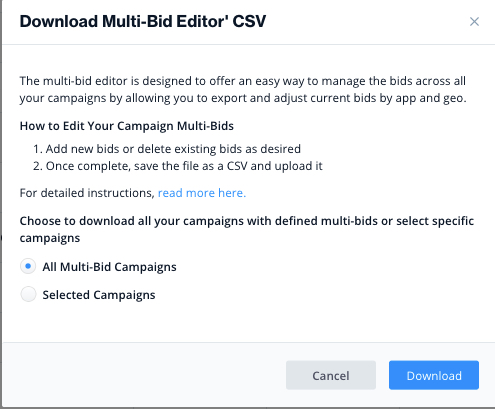
You can choose to download all campaigns or select specific campaigns that you’d like to adjust multi-bids for. 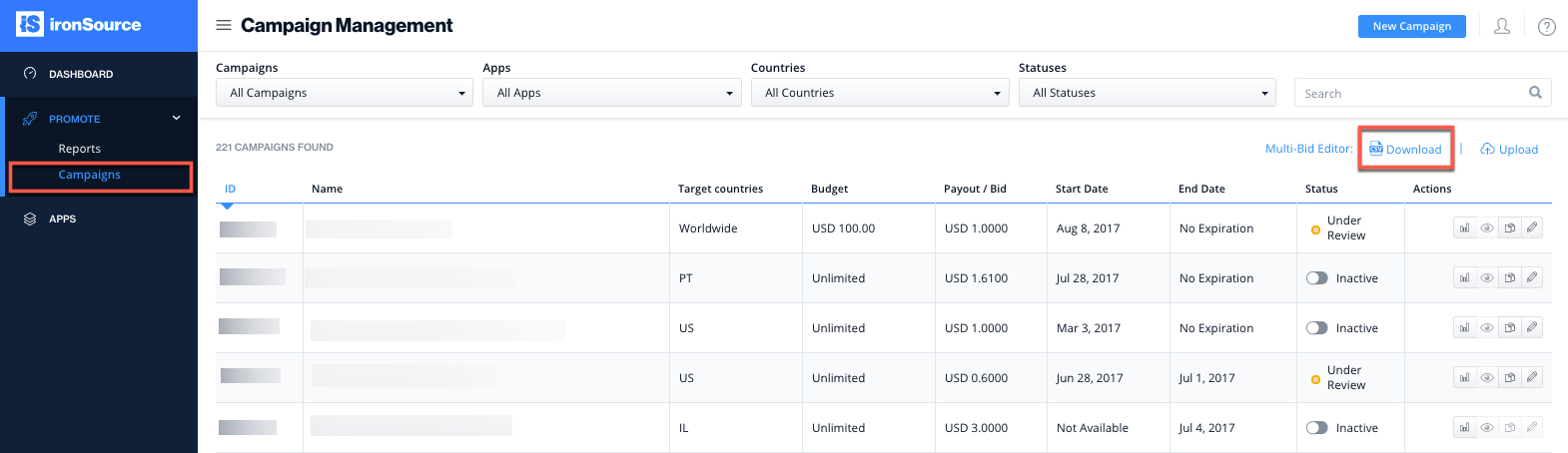
The CSV allows you to edit any campaign, regardless of whether or not you have editing rights on the campaign dashboard.
Download All Campaigns
If you’d like to make bid adjustments to all the campaigns with existing multi-bids, select ‘All Multi-Bid Campaigns‘ and click ‘Download‘.
Download Specific Campaigns
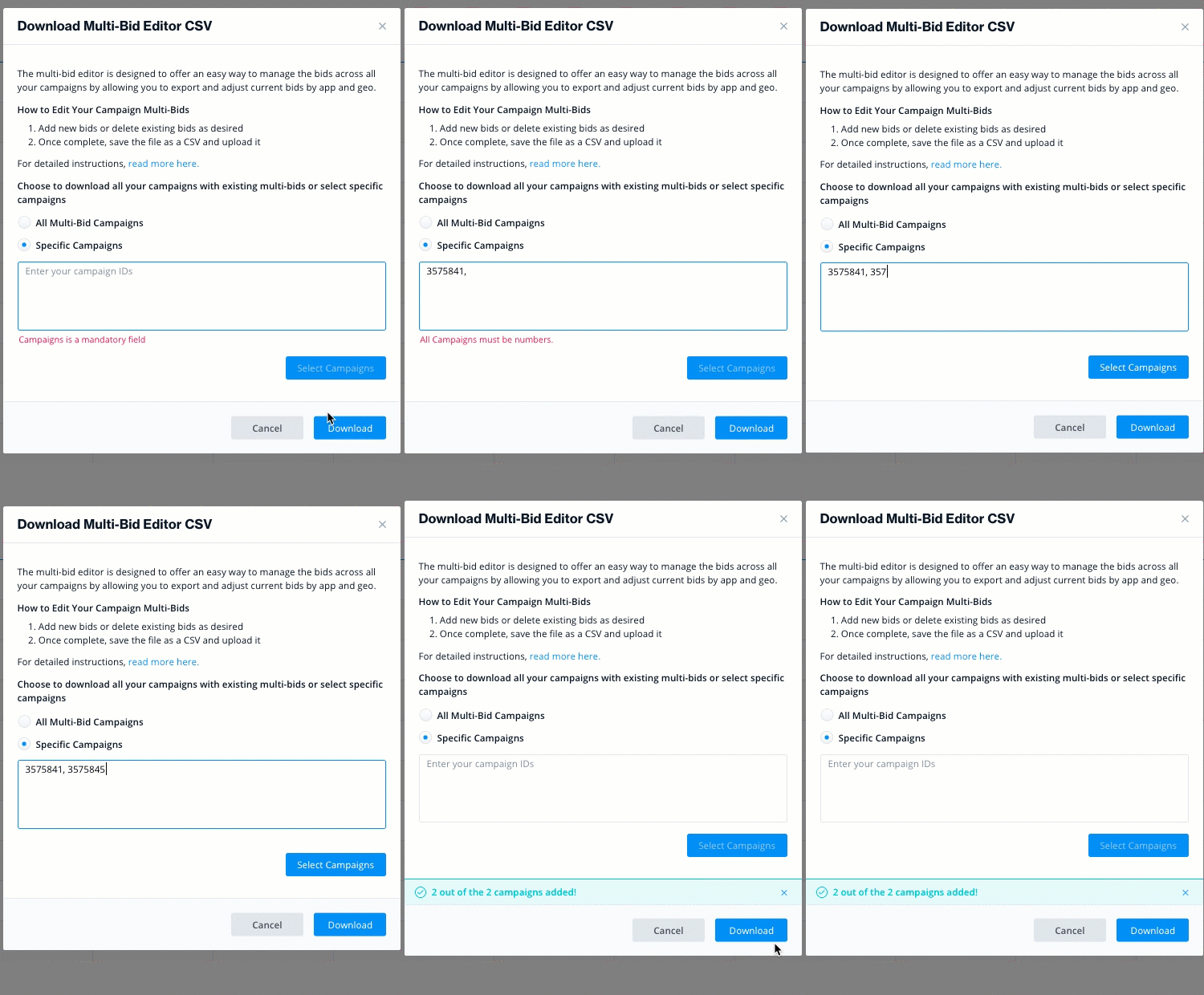
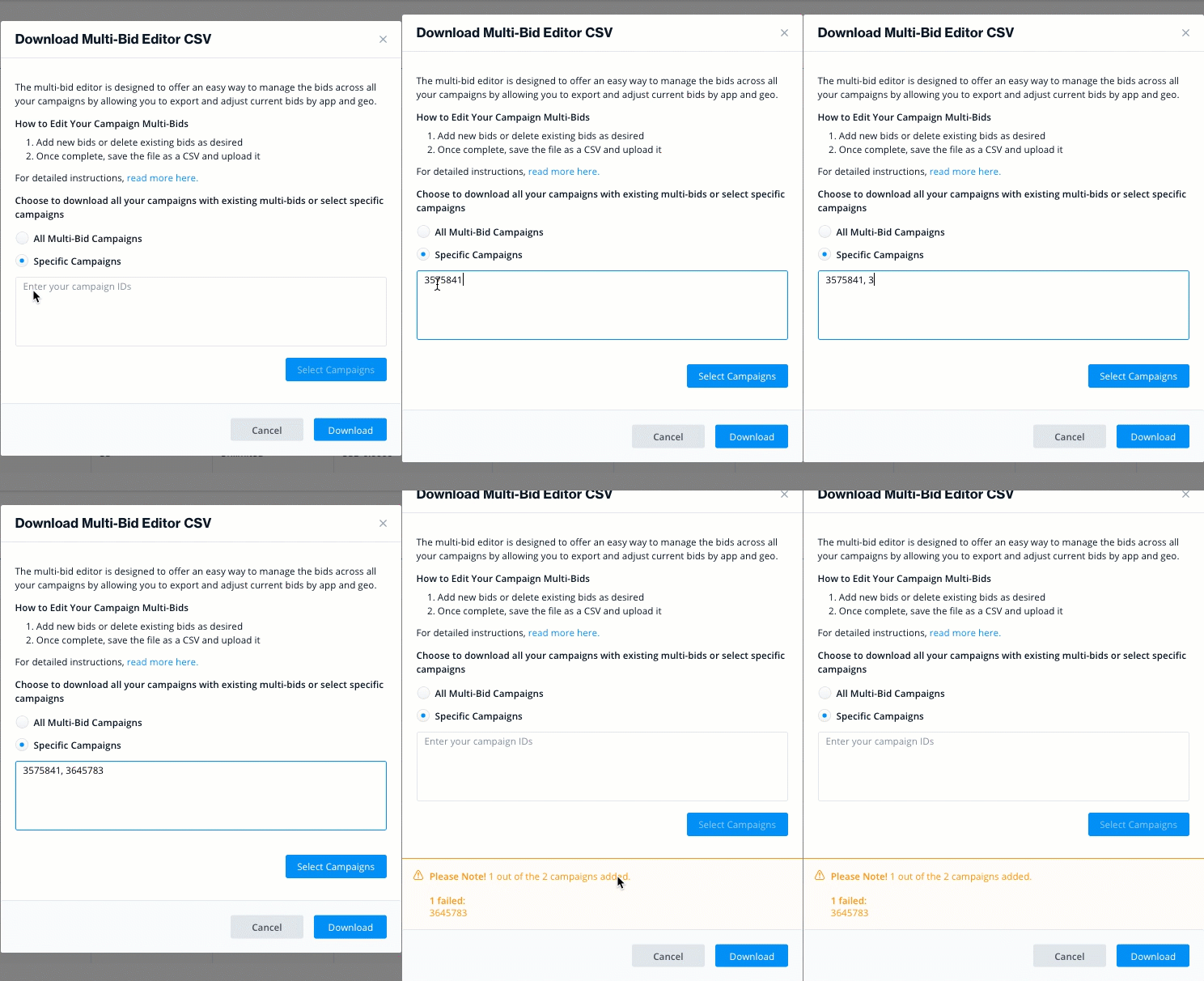
If you have a predefined list of campaigns you’d like to add or adjust multi-bids for, select ‘Specific Campaigns‘ and enter the campaignIDs. Then click ‘Select Campaigns‘ and ‘Download‘.
The campaignID must be valid ID
Step 2. Edit Your Bids in Bulk
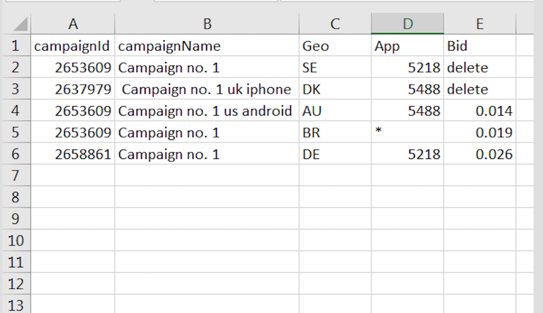
Export the CSV that contains your current bids as well as details on your campaigns’ ID, Geo and App. This should make it easy to make bid adjustments to any given campaign in your CSV.
Data in the CSV File
| Column Name | Description |
| campaignID | The unique identifier of the campaign in the ironSource system |
| campaignName | The given name of the campaign |
| Geo | The country for which you’d like to adjust the bid |
| App | The media on which the campaign run and for which you’d like to adjust the bid |
| Bid | The price you’re willing to pay for an interaction with the ad for the specific geo and app |
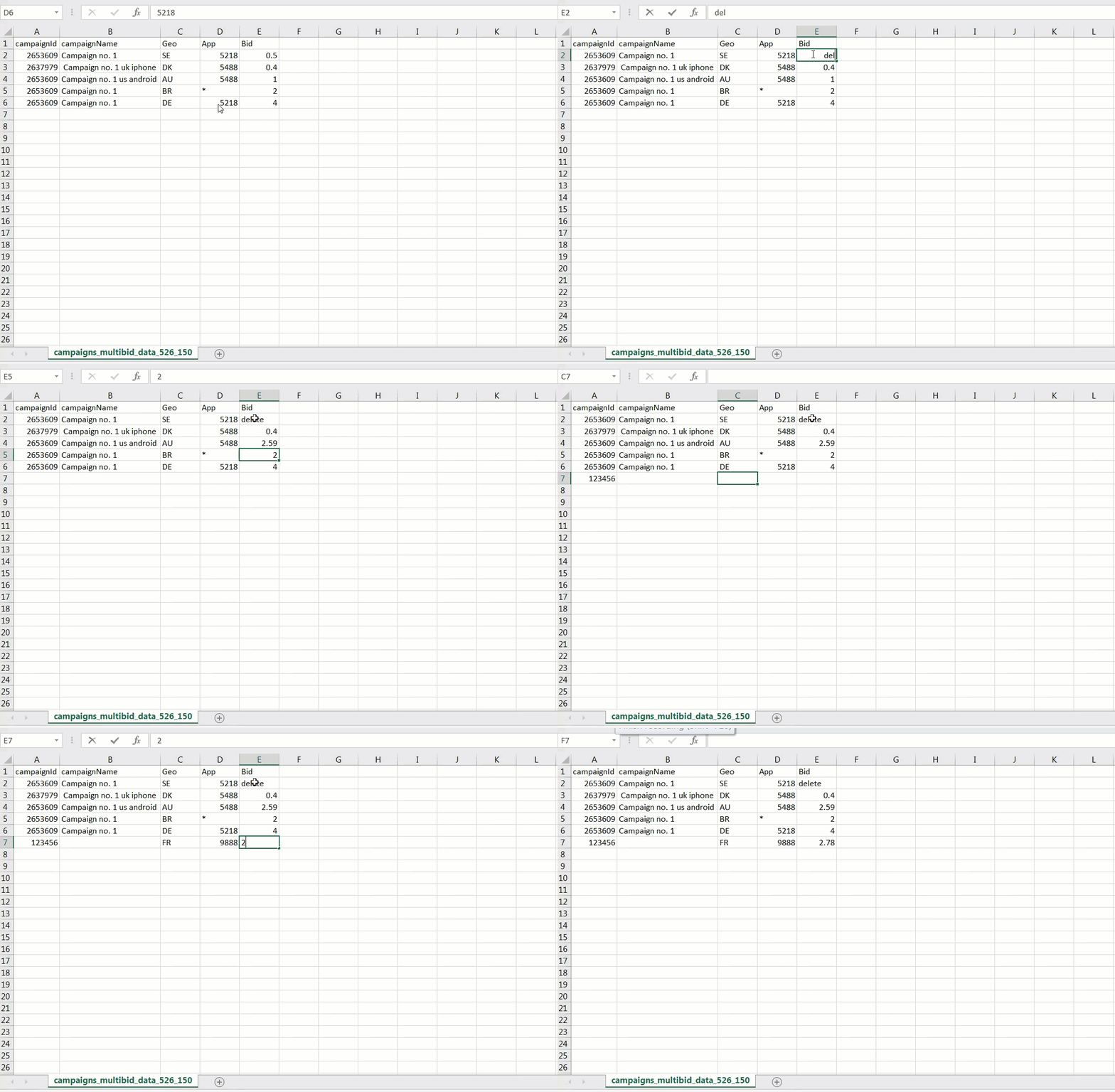
Supported Adjustments in the Multi-Bid Editor
| Desired Result | Action |
| Add a bid to a campaign | Insert the desired value in the Bid column of the related campaign |
| Edit a bid for a campaign | Update the value in the Bid column of the related campaign |
| Make a uniform update across all apps running in the campaign | Enter an asterisk (*) in the AppId column |
| Delete an existing bid | Enter ‘delete’ in the Bid column |
- The bids must have a value greater than 0 and need to be conveyed in USD.
- Make sure to enter the correct country codes. Find a comprehensive list here.
Step 3. Save & Upload Adjusted Edits
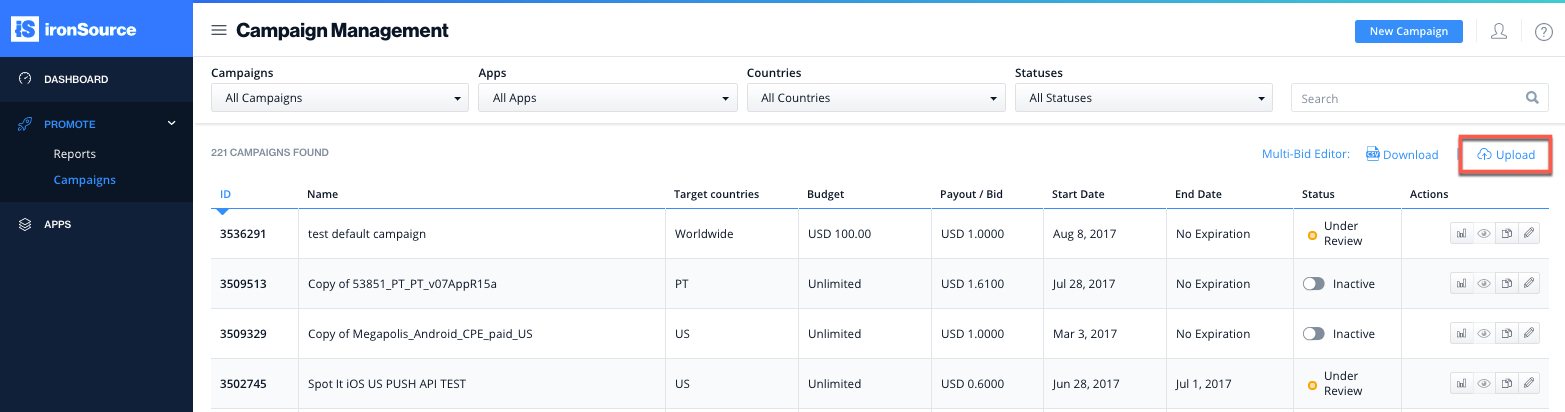
Once you’ve made all desired adjustments, save the file as a CSV and upload it to the ironSource platform on the Campaign Management page. Click on ‘Upload‘ and you will be able to drag and drop the CSV or browse your computer for the file.
Check for Errors
If there are any errors in the CSV, you will see a corresponding error message in the upload window. You will need to adjust the CSV accordingly and upload it anew.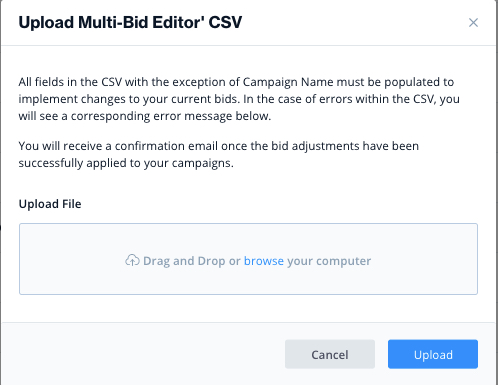
| Error Message | Description | Resolution |
| The campaignId-Geo-App combination must be unique | You have two or more rows in your CSV with the same Geo and App combination for one campaign. | Remove duplicate rows. |
| Missing mandatory fields: campaignId | Missing the campaignID. | Add campaignID. |
| Missing mandatory fields: Geo,App,Bid | Missing the geo, app, bid titles. | Enter Geo, App, Bid data. |
| Missing campaignId value | Missing the value in the campaign id column. | Enter the correlating campaignID for the campaign. |
| Missing Geo value; Missing App value; Missing Bid value | Missing the value in the geo, app or bid column. | Add the relevant value in the correct column. |
| CampaignId must be an integer number | Cannot have letters nor symbols. | Make sure there are only numbers in the campaignID column. |
| Invalid Geo value: must be a 2-letter code | Your geo code cannot be an integer and must be a valid code from this list | Verify the listed Geo codes. |
| App must be an integer number or an “*”‘ | Cannot be a letter or a symbol and cannot have decimals. Must be a number or an asterisk. | Make sure there are only numbers or ‘*’ in the App column. |
| App does not exist | The app doesn’t exist in our network. | Enter an existing appID. |
| Invalid Bid value: must be either a float number or “delete” | A bid can be a number with a decimal or the word ‘delete’. | Make sure the Bid column is comprised of numbers or to delete a distinct bid, enter the word ‘delete’. |
| Invalid Bid value: must be 0 < Bid <= 50 | A bid must be higher than $0 and lower than $50. | Ensure your inputs are between 0-50. |
| Invalid Bid value: cannot have more than 4 decimal places | We support up to four decimal places for the bid value. | Adjust your bid is digit with up to four decimals, round up the bid value if necessary. |
| No changes detected | Our system doesn’t detect any changes in the file. | Make sure you’ve added new values to the uploaded file. |
| Campaign must be editable | This campaign is not open for editing. | Contact your account manager to be granted editing rights to the campaign. |
Applied Bid Changes
You will then receive a confirmation email once the bid adjustments have been successfully applied to your campaigns.
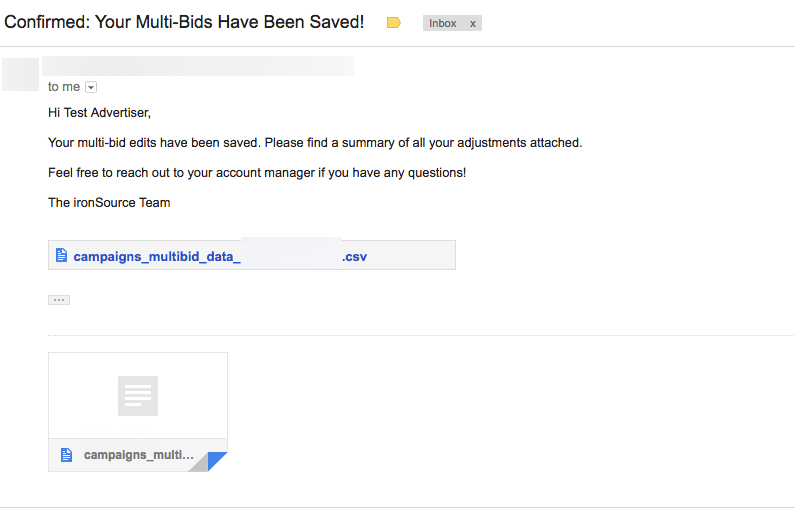
Done! You’ve successfully updated your bids.