

LINE Ads Integration Guide
This guide will instruct you step-by-step on how to set LINE Ads live as an ad network on Unity LevelPlay.
Step 1: Create a LINE Business account
Start by creating a LINE Business account. This allows you to access LINE Ads Network and configure your app inventory.
- Go to the LINE Ads Network site.
- Register for a LINE Business account.
- Sign in to the LAN Dashboard.
Step 2: Create an app and slots
Add your app
-
- Log in to the LAN Dashboard.
- Select 広告枠管理 > メディア.
- Click 新規作成 to create anew app
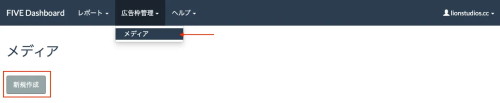
- Log in to the LAN Dashboard.
Configure your app settings:
-
- 名前: Enter your app name
- アプリの概要: Enter a description
- ストアURL: Enter the Store URL
- プラットフォーム: Select APP
- パッケージ名: Enter your bundle ID or package name
- OS: Select the relevant OS
- カテゴリー: Select a category
- Click 登録 to add your app.
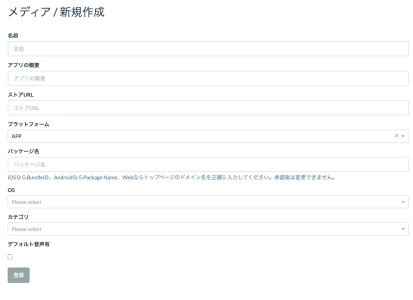
Add a new slot
After adding your app, create the slots that LevelPlay will request during bidding.
- Click the name of the app you created.
- Select 詳細
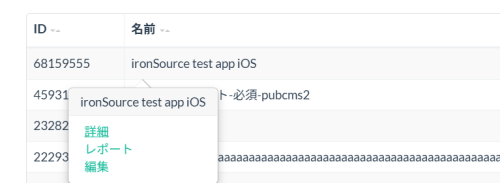
- Click スロット追加
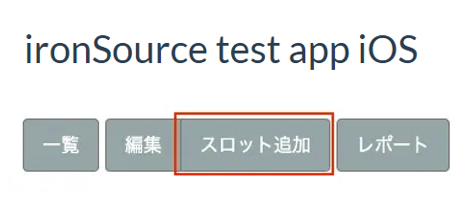
- Configure your slot settings:
- 名前: Enter a slot name
- フォーマット: Choose a slot format from the list below.
- Banner: バナー320×50 (640×100)
- MREC: レクタングル300×250
- Interstitial: インタースティシャル
- Rewarded: 動画リワード縦向き (portrait), or 動画リワード横向き (landscape)
- Bidding Type: Select ironSource SDK Bidding
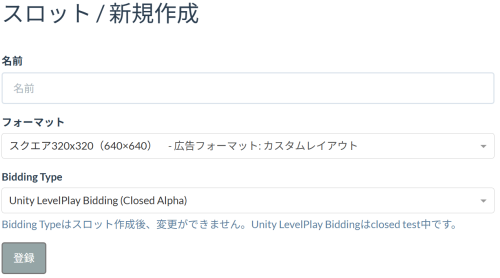
Retrieve app and slot IDs
You must retrieve your app ID and slot ID to configure LINE Ads Network in LevelPlay.
- App ID: Found under 広告枠管理 > メディア
- Slot ID: Found on the app details page inside LAN Dashboard
Step 3. Activate LINE Ads on the LevelPlay platform
-
- Log into your LevelPlay account and go to the LevelPlay side nav bar ➣ Setup ➣ Networks
- Locate LINE Ads from the list of available ad networks and click Setup.Then enter the relevant information
- Next, go to the Instances page, select the app on which you’d like to run Unity LevelPlay’s Mediation with LINE Ads bidding.
- Select LINE Ads and enter the relevant information for Interstitial, Rewarded, Banner, and Native settings. Then click Save.
The network will be active for your app.
Step 4. Add the LINE Ads Adapter to Your Build
Unity LevelPlay supports both Gradle dependencies and manual download mechanisms
Gradle
- Make sure the following Maven URL exists in your build.gradle script of your app module.
dependencies { implementation 'com.unity3d.ads-mediation:line-adapter:5.1.0' implementation 'com.linecorp.adsnetwork:fivead:2.9.20251028' } - Add the adapter’s Maven name to your build.gradle script of your app module.
dependencies { implementation 'com.unity3d.ads-mediation:line-adapter:5.1.0' implementation 'com.linecorp.adsnetwork:fivead:2.9.20251028' }
Done!
You are now all set to deliver LINE Ads within your application!